Register
How to register for access to certain abtmtr.link services.
Registration on abtmtr.link centers around next.abtmtr.link. It will be your primary authentication provider.
If you have an account on next.abtmtr.link, you also have access to the other services on abtmtr.link that require registration.
Types of accounts
Registering for abtmtr.link services
To start, send an email to me@abtmtr.link like so:
Subject: [ABTMTR.LINK ACCOUNT] Register
I'd like [Lowercase username - a-z, 0-9, dots, hyphens, and underscores allowed]@abtmtr.link.

[Explain your reasoning here - who you are, and why you'd like an abtmtr.link account.]

Thanks,
[Your name]
The email you specify will become your username for your abtmtr.link account AND email address for your @abtmtr.link email.
The address you've sent the email from will become your recovery email, for password resets. We will not advertise to you through your email, we promise!
Your @abtmtr.link email will be reserved as soon as you start owning an account, so if you don't want an @abtmtr.link email, just don't use it. We will never send anything important directly to your @abtmtr.link email.
Deleting your abtmtr.link account data
If you want to fully get rid of all of your associated user data stored on all abtmtr.link services, just send an email to me@abtmtr.link from your recovery email.
Subject: [ABTMTR.LINK EMAIL] Deletion
Please delete the user data of [username]@abtmtr.link.

Thanks,
[Your name - this MUST match your display name on next.abtmtr.link.]
If your username does not match the display name, or your recovery email, this request will be denied.
Logging into next.abtmtr.link
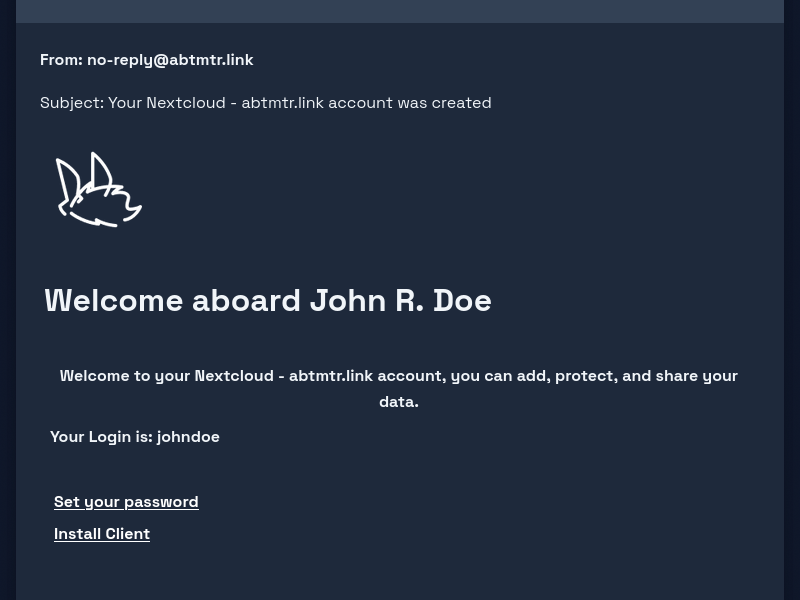
Once you have recieved your welcome email from no-reply@abtmtr.link, you should be set for making a new abtmtr.link account! Here's how to do it.
First, look for the welcome email in your inbox. Check your spam folder and stuff.
You can ignore the "Install Client" link - let's figure out software later. Instead, follow the "Set your password" link.
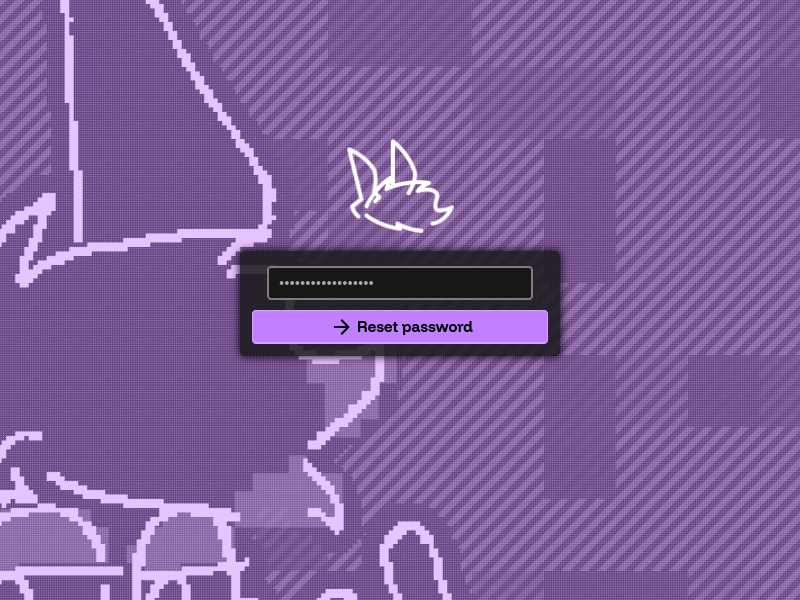
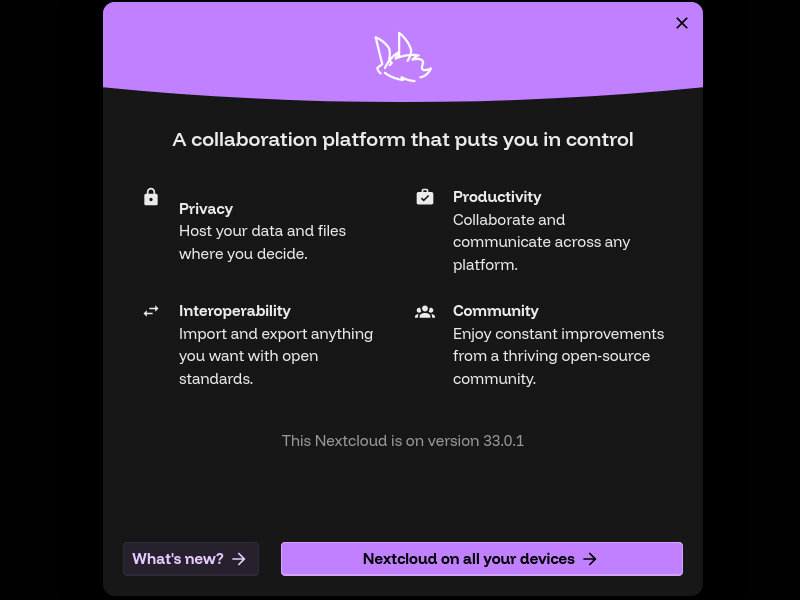
You should see a purple page with a password entry box on it. Enter a password, then click "Reset Password".
Once you've set your password, you should be sent to the login page.
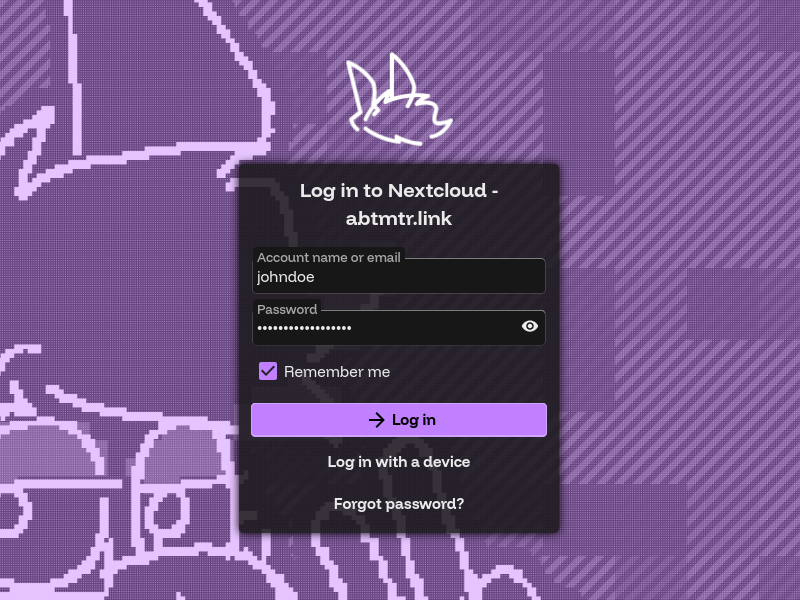
Enjoy your new account!
Logging into mail.abtmtr.link
For mail.abtmtr.link, you must obtain an app password, as it does not support authenticating with OAuth. Follow the guide on Obtaining credentials for other abtmtr.link services for instructions.
Email client configuration
Logging into pile.abtmtr.link
For pile.abtmtr.link, you must obtain an app password, as it does not support authenticating with OAuth. Follow the guide on Obtaining credentials for other abtmtr.link services for instructions.
Drawpile app configuration
Obtaining credentials for other abtmtr.link services
All abtmtr.link services use next.abtmtr.link for user authentication. Often, this will be through an OAuth prompt that will allow you to get straight to using the service.
However, some services do not support OAuth. These services will show you a username and password prompt.
For these prompts, you must have an "app password" from next.abtmtr.link. This guide will take you through obtaining an app password for these services.
First, log into your abtmtr.link account via next.abtmtr.link.
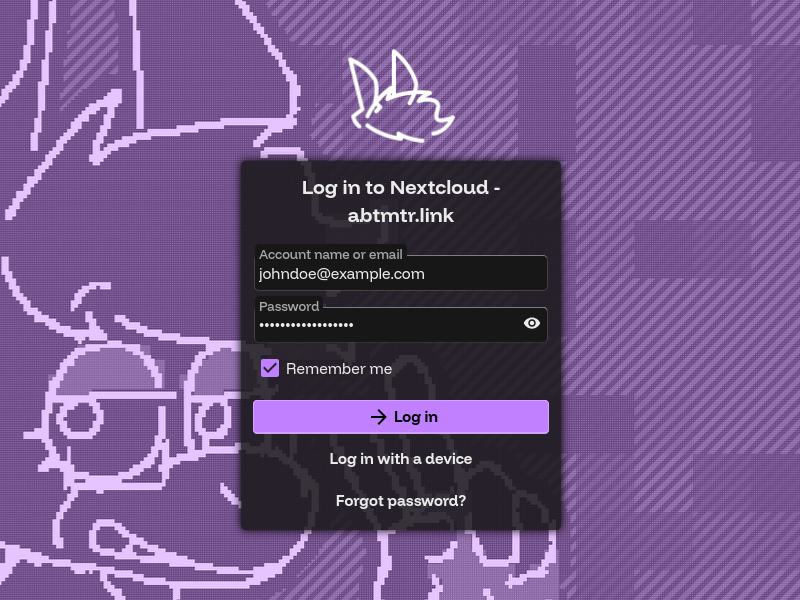
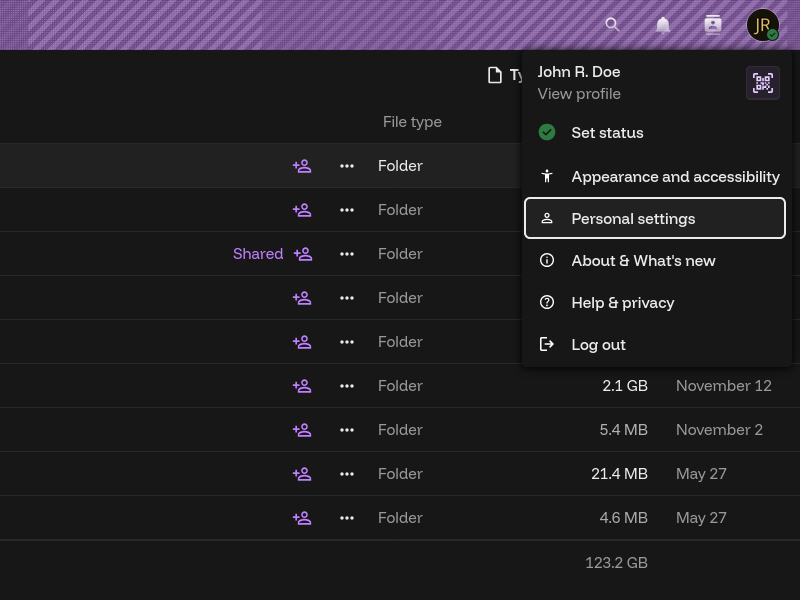
Once logged in, click your profile picture in the top-right of the header. Go to "Personal settings".
Open the sidebar, then go to Security.
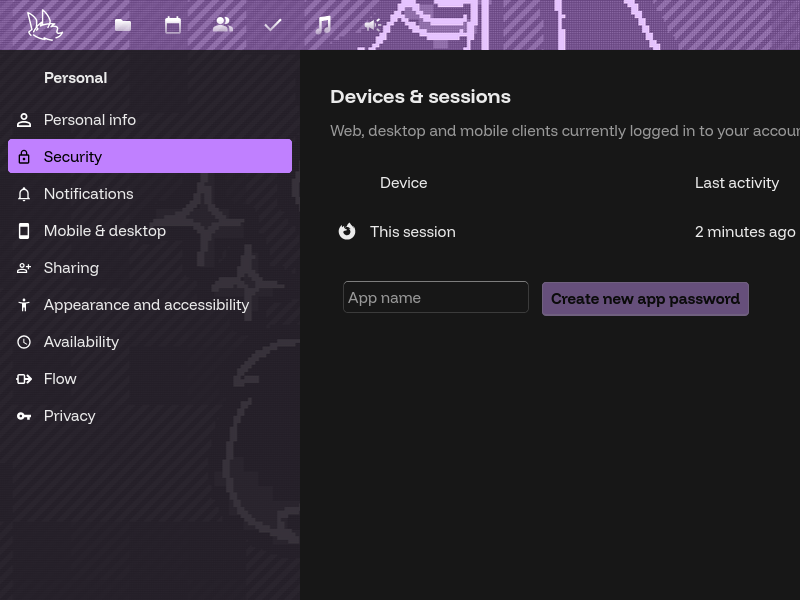
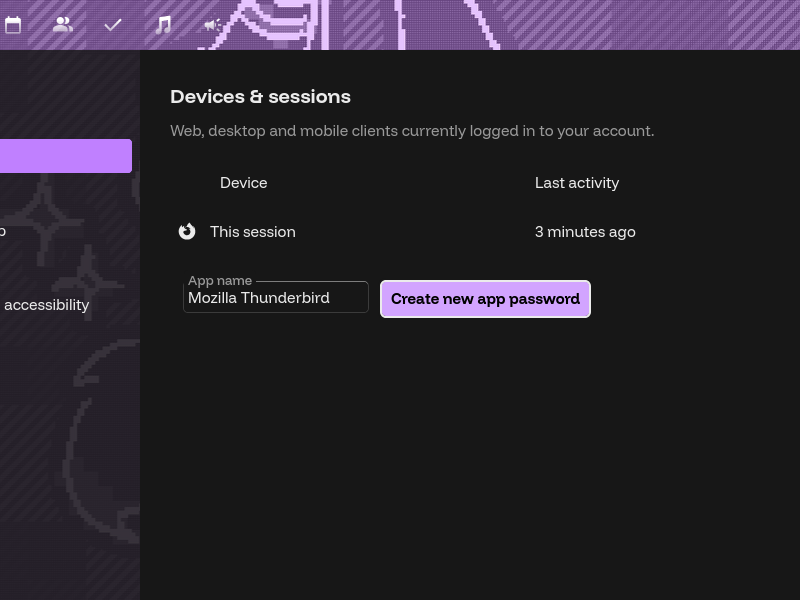
Scroll down to the bottom of the Devices & sessions section, type any app name, and click Create new app password.
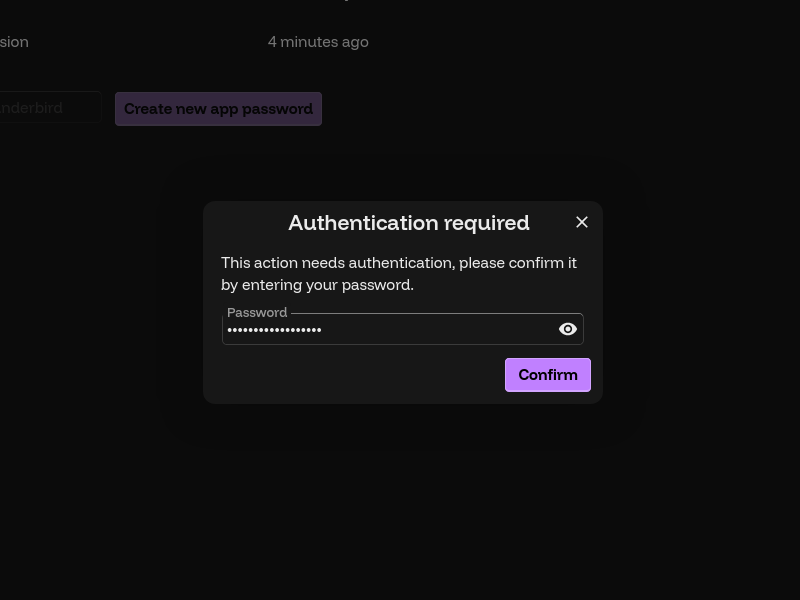
You may be prompted for your account password.
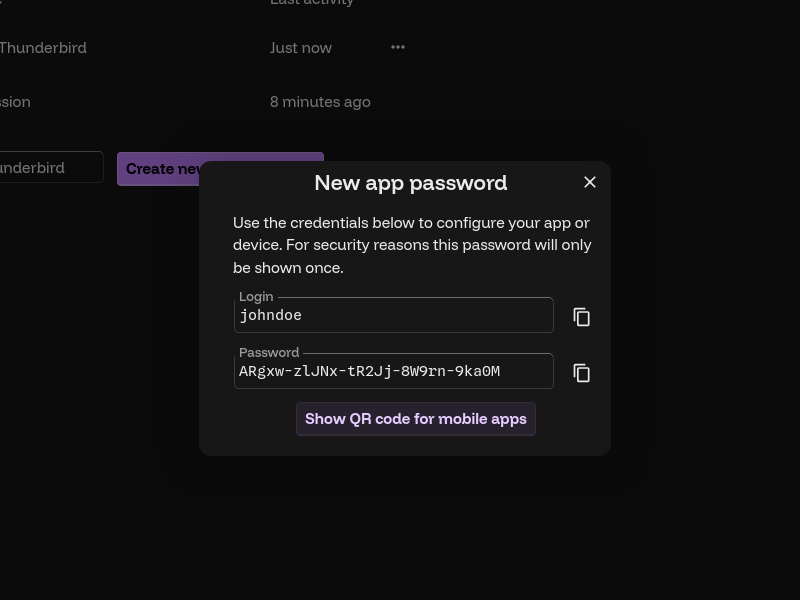
Copy the new app password, and keep it safe.